
An Introduction to HCAI on Embodia
The actions described in this tutorial require Manager-level permissions on your clinic account.
Overview
For practitioners and clinics based out of Ontario, Canada, Embodia enables you to submit Health Claims for Auto Insurance (HCAI) directly from Embodia. This feature integrates seamlessly with the Embodia billing features, resulting in significant time savings and less administrative hassle. This feature is available as part of our Tier 3 membership (more information here).
To get started, you must already have an account with HCAI. If you do not have an account with HCAI, you can create one directly on HCAI.
You also need to add all the practitioners (providers) in your clinic to HCAI. You can learn more in this guide.
This section will go over:
- Enabling and adding your HCAI credentials to Embodia;
- Preparing your Embodia account;
- Submitting plans and invoices to HCAI;
- Connecting HCAI plans and invoices to invoices on Embodia.
Video tutorial
Step 1: Enable the HCAI Integration in Embodia
- In Embodia, navigate to Billing > Settings > General Settings.
- Check the box labeled Enable HCAI.
- Save your changes.
Once HCAI is enabled, you will need to enter the Practice Management System (PMS) credentials that HCAI provides. These credentials are created within your HCAI account (outlined in Step 2 below).
If you need help locating or managing your HCAI information, refer to HCAI’s official documentation.
Step 2: Set Up or Update Your PMS Information in HCAI
Log in to your HCAI account and navigate to: Manage > Facility Management > HCAI Submission Method (see highlighted red box in the example image below):
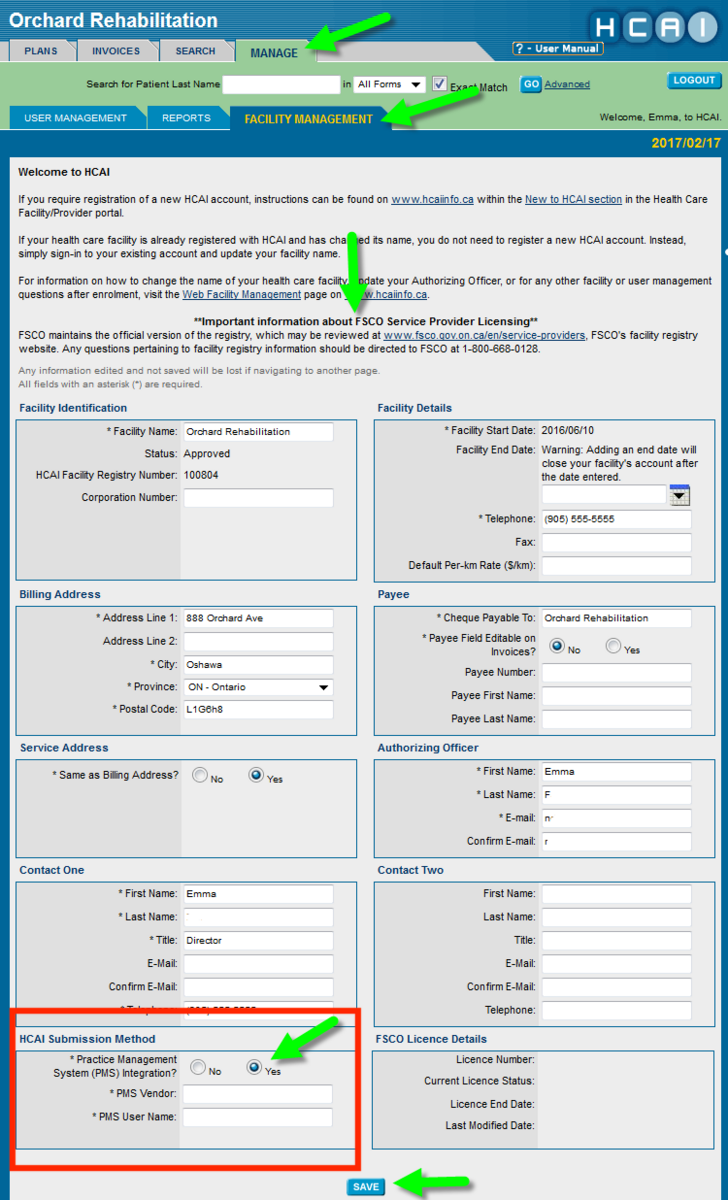
Complete the fields as follows:
- Practice Management System (PMS) Integration: Yes
- PMS Vendor: Embodia
- PMS Username: Create a username (you will use this in Embodia)
Click Save.
After saving, a Reset PMS Password button will appear:
- Click Reset PMS Password.
- Create a new password.
- Keep this username and password handy—you will enter them in Embodia in Step 3.
Step 3: Add Your HCAI Credentials to Embodia
Once your PMS credentials have been created in HCAI:
- In Embodia, go to Billing > Settings > HCAI Settings > Credentials.

- Click Connect my HCAI account.
This popup form will appear:
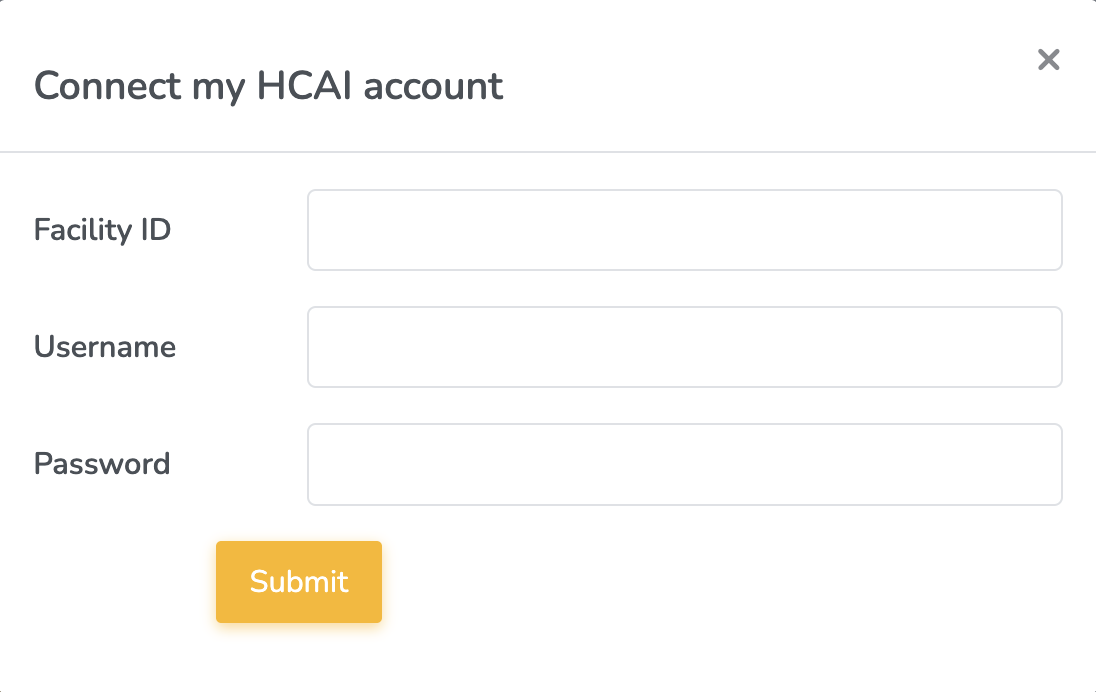
Enter the following information:
- Facility ID: This can be found in your HCAI account (see highlighted red box in the example image below)
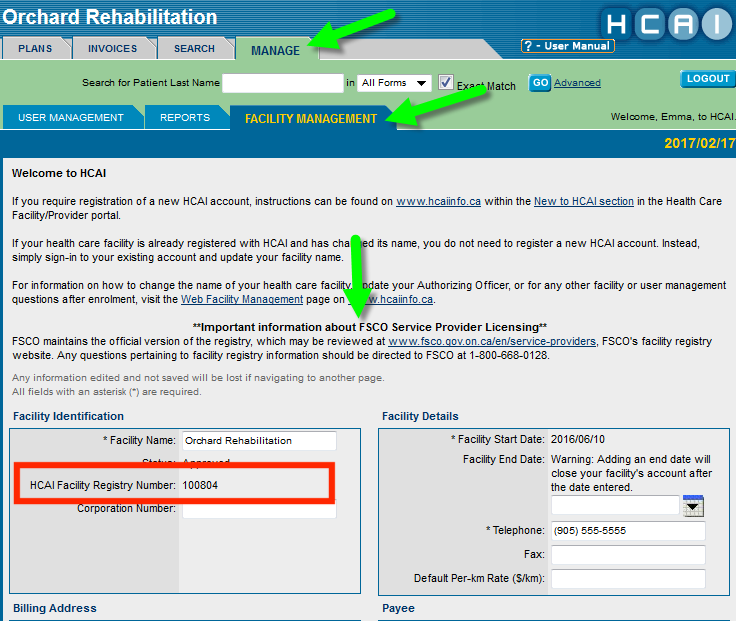
- Username: The PMS username you created in HCAI (Step 2)
- Password: The PMS password you reset in HCAI
Click Submit.
If the information is correct, Embodia will automatically retrieve:
- Your HCAI facility information
- The list of providers associated with your HCAI account
Updating or refreshing your HCAI information
If you need to update your HCAI credentials, or refresh your HCAI data (for example, after adding new providers in HCAI), follow these steps:
- Go to Billing > Settings > HCAI Settings > Credentials.
- Click Edit my HCAI account.

- Confirm your credentials in the popup form.
- Click Submit.
This will revalidate your credentials and refresh your HCAI information in Embodia.